



Introduction
In short, the “Ghostface prompt” is a trending way to generate creepy, horror-style AI images using Google Gemini’s image generation tools. This prompt typically places a ghostly figure—similar to the iconic Ghostface from Scream—lurking in the background of a realistic photo. The result is a chilling, cinematic visual that has gone viral on social media for its unsettling realism.
“A photorealistic horror-style portrait. A person in the center foreground, dim lighting, subtle facial shadows. In the background, a ghostly masked figure (Ghostface style) is partially visible in a dark hallway. Cinematic lighting, shallow depth of field, muted color palette, fog, film grain.”
This article explains what the Ghostface prompt is, why it became popular, and how you can replicate the effect using either Google Gemini or GPT-powered tools like DALL·E or Stable Diffusion. Whether you’re exploring AI art trends or just want a creepy photo to share, here’s how to get started.
What is the “Ghostface Prompt” in Google Gemini?
The “Ghostface prompt” refers to a viral AI prompt used in Google Gemini to generate horror-themed images, often showing a person with a mysterious masked figure lurking behind them. The style mimics psychological thriller movies—moody lighting, cinematic tones, and photorealism.
This trend surged in popularity on platforms like Instagram, Facebook, and Reddit due to:
-
Emotional impact: eerie visuals spark surprise or fear.
-
Shareability: users create versions with themselves or friends.
-
Realistic outputs: Gemini’s image engine produces stunning results.
How to Create a “Ghostface Prompt” Image with Google Gemini
Step-by-Step Prompt Guide
Follow these steps to generate the image using Gemini:
1. Prepare the Subject
Use a prompt describing a person in a quiet or dim-lit environment. Optionally, upload a selfie (if Gemini supports image inputs).
2. Use the Right Prompt in Gemini for Scream Face
Which is te correct Ghostface Prompt optimized prompt you can paste into Gemini?
Here is an example:
“A photorealistic horror-style portrait. A person in the center foreground, dim lighting, subtle facial shadows. In the background, a ghostly masked figure (Ghostface style) is partially visible in a dark hallway. Cinematic lighting, shallow depth of field, muted color palette, fog, film grain.”
3. Refine the Image with Variants
If the result isn’t ideal, try these additions:
-
“Add soft fog and shadows.”
-
“Keep the masked figure out of focus.”
-
“Avoid cartoon effects or bright colors.”

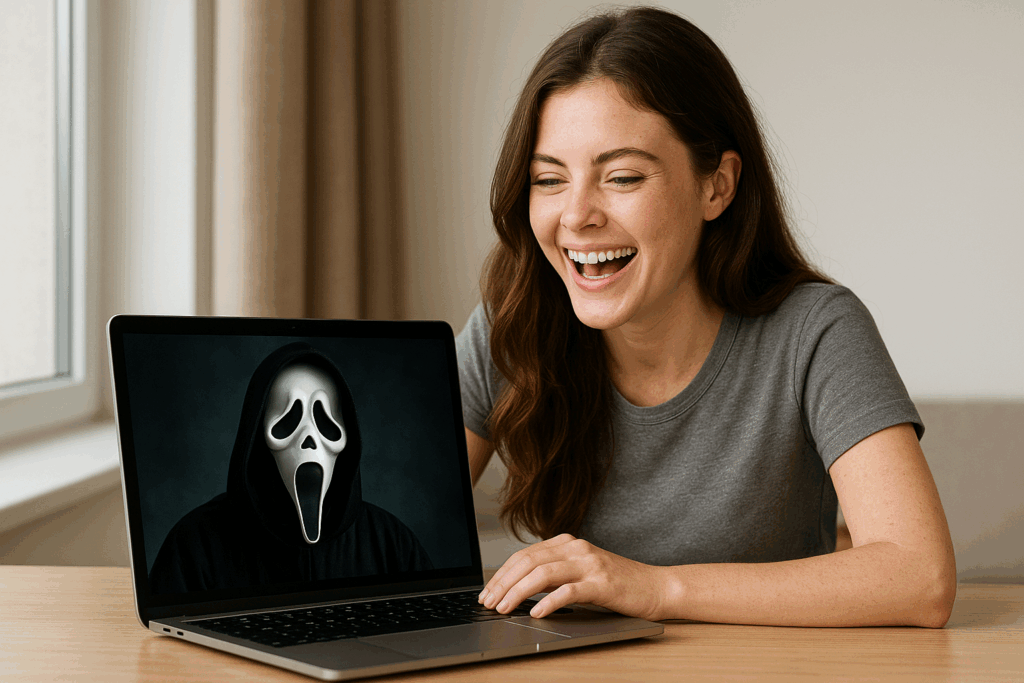
How to Add Ghostface to Your Real Photos with AI (Step-by-Step)
Learn how to add Ghostface from Scream to your real photos using AI tools like Gemini, DALL·E or Canva Pro. Fun, safe and realistic edits in minutes.
In short, you can add Ghostface—the iconic masked figure from Scream—to your real-life photos using free or paid AI tools. This step-by-step guide is designed for young users who want to create spooky, realistic edits using platforms like Google Gemini, DALL·E 3, Canva Pro, or Picsart AI. With the right tools and a bit of creativity, you can generate eerie but believable images that look like Ghostface is lurking right behind you. Keep reading to learn how to do it responsibly and effectively.
How can I add Ghostface to my real photos with AI?
Use an AI photo editor (like DALL·E, Gemini, or Canva) and upload your photo. Then, prompt the tool to place Ghostface in the background, partially hidden, for a spooky but realistic effect.

Tools You’ll Need
- A photo of yourself (ideally with background space: hallway, door, or wall).
- Access to one of the following tools:
- Google Gemini
- DALL·E 3 (via Bing, Copilot, or ChatGPT with image generation)
- Picsart AI
- Remini + Snapseed
- Canva Pro with AI image tools
Step-by-Step Guide to Add Ghostface
1. Choose Your Best Photo
Pick a picture where:
- You are clearly visible.
- The background has room for Ghostface to «appear.»
Example: Standing in front of a door or in a dark hallway.
2. Open Your AI App or Editor
Use any of these:
- Google Gemini
- Canva Pro
- Picsart AI
- DALL·E via ChatGPT or Bing
3. Enter This Prompt (in English)
Note: Avoid using terms like «cartoon» or anything exaggerated if you want a realistic result.
4. Upload Your Photo or Combine Images
- If using DALL·E or Gemini: upload your photo and ask the tool to add Ghostface.
- If using an editor (like Canva or Photoshop Express): overlay the generated Ghostface image behind you.
5. Adjust Shadows, Contrast, and Fog
To make it more realistic:
- Darken the background slightly.
- Add a fog or shadow filter.
- Use effects like «film grain,» «cinematic,» or «vignette.»
6. Save and Share Responsibly
- ✅ Make sure it looks believable.
- ❌ Avoid showing other people without their permission.
- 💡 Share your creation creatively and respectfully!
Safety and Responsibility Tips
- ⚠️ Do not use someone else’s face in scary edits without consent.
- ⚠️ Avoid sharing images that could frighten small children or sensitive individuals.
- ✅ Always clarify that the image is AI-generated if it may cause confusion.
🎭 10 Prompts using Ghostface for pranks
-
Birthday photobomb
“A teenager celebrating their birthday, blowing candles, while Ghostface is sneaking behind with a party hat and a balloon, trying not to be noticed.”
-
Mirror surprise selfie
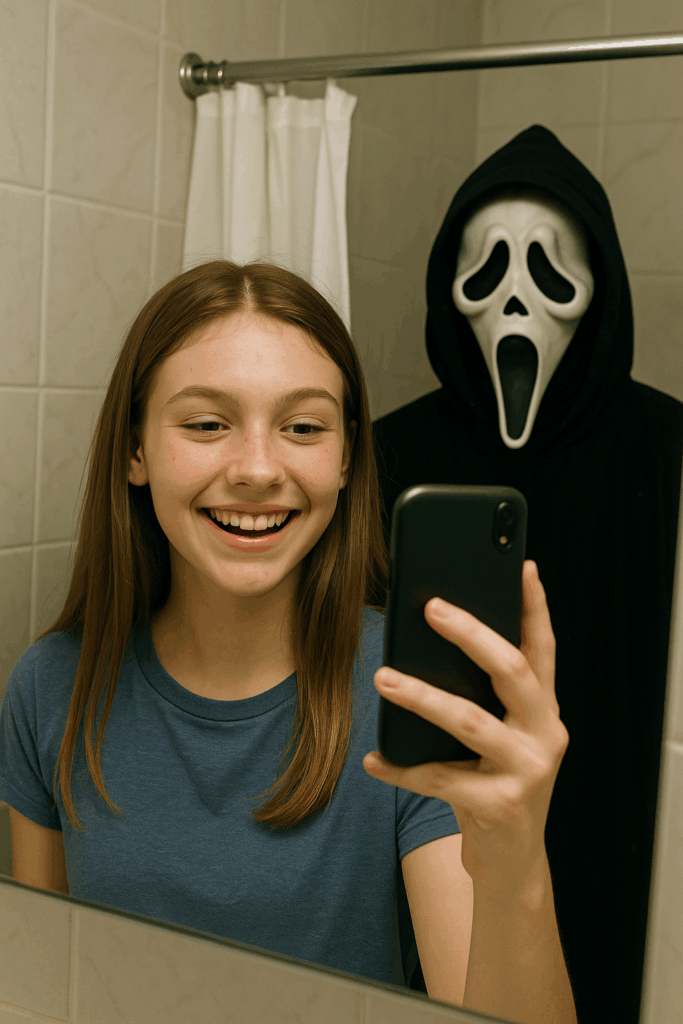
“A teen taking a selfie in the bathroom mirror, and in the reflection, Ghostface is peeking from behind the shower curtain.”
-
Sleepover horror cameo
“A group of teens at a sleepover watching horror movies, with Ghostface hiding behind the couch, holding popcorn.”
-
Ghostface in school hallway
“A student walking casually through a school hallway while Ghostface is standing by a locker, waving with a creepy grin.”
-
Group selfie gone wrong
“A group of friends taking a smiling selfie, but in the background, Ghostface appears half-hidden in a window or door.”
-
Skate park scream
“A teen skating at a park, mid-trick, while Ghostface is chilling on a bench wearing shades and holding a slushie.”
-
Bus stop stalker
“A student waiting at a bus stop on a cloudy morning, while Ghostface stands at the end of the sidewalk, holding a school backpack.”
-
Ghostface in math class
“A classroom scene with students working quietly, and Ghostface is sitting in the last row, pretending to do homework.”
-
AI art club horror twist
“A group of teens in an art club creating AI art, and Ghostface is posing for them dramatically like a fashion model.”
-
Photo booth prank
“Two teens in a photo booth taking silly pictures, and Ghostface appears in the last frame holding bunny ears behind them.”
How to Make a Similar Image with GPT-Based Tools
If you use a GPT-based model like DALL·E, Midjourney, or Stable Diffusion, apply the same structure:
Prompt Example for DALL·E or Stable Diffusion
“A realistic horror portrait of a person looking forward. Behind them, in a dark doorway, a blurry ghostly figure with a white mask, soft cinematic lighting, fog, film grain, and muted tones.”
Adjust the prompt with “negative terms” if supported:
-
“No cartoon style, no bright colors, no smiling faces.”
Why is the Ghostface Prompt So Popular?
This AI prompt became popular for a few reasons:
-
It taps into horror tropes: fear of what’s behind you.
-
It uses Gemini’s strengths: photorealism, moody lighting.
-
Social media virality: many users share their creepy outputs.
-
It connects to pop culture: “Ghostface” is linked to the Scream franchise.
FAQs
What is the Ghostface prompt on Gemini?
A creative AI prompt that produces horror-style images with a masked ghostly figure, often hidden in the background of a realistic photo.
Can I use my own face in the Ghostface image?
Yes, if Gemini supports image inputs. Otherwise, describe a generic subject in the prompt.
Which AI models can replicate this style?
Besides Gemini, models like DALL·E, Stable Diffusion, and Midjourney can create similar results using carefully worded prompts.
Is this trend safe or appropriate?
It’s intended for creative or artistic use. However, ensure the imagery isn’t too disturbing for younger audiences.
Conclusion
The “Ghostface prompt” is a compelling use of AI art, blending horror aesthetics with advanced image generation tools like Google Gemini. By following structured prompts and tweaking visual elements like lighting, blur, and mood, anyone can generate cinematic, eerie visuals. If you don’t use Gemini, you can still replicate the trend with DALL·E or other tools.
References:
AS. (2024, May 9). El prompt de Google Gemini “Nano Banana” para tener tus fotos estilo Polaroid con famosos y personajes de ficción. MeriStation. https://as.com/meristation/betech/el-prompt-de-google-gemininano-banana-para-tener-tus-fotos-estilo-polaroid-con-famosos-y-personajes-de-ficcion-n/
Facebook. (2024). Open Gemini AI in Google Chrome, copy and paste the prompt: Photorealistic group shot…https://www.facebook.com/mangskinz.mahigugmaon/posts/open-gemini-ai-in-google-chrome-copy-and-paste-the-prompt-photorealistic-group-s/24740527872247780/
Instagram. (2024). Ghostface Prompt AI trend post. https://www.instagram.com/p/DPCBHjwkfiT/?utm_source=chatgpt.com
Read: LuminaBrush AI: The Future of Digital Lighting Editing