


Why does USB port count matter?
Tabla de contenido:
Knowing how many USB ports your motherboard supports is key for connecting peripherals like:
- Keyboards, mice
- External drives
- Webcams, microphones
- Game controllers
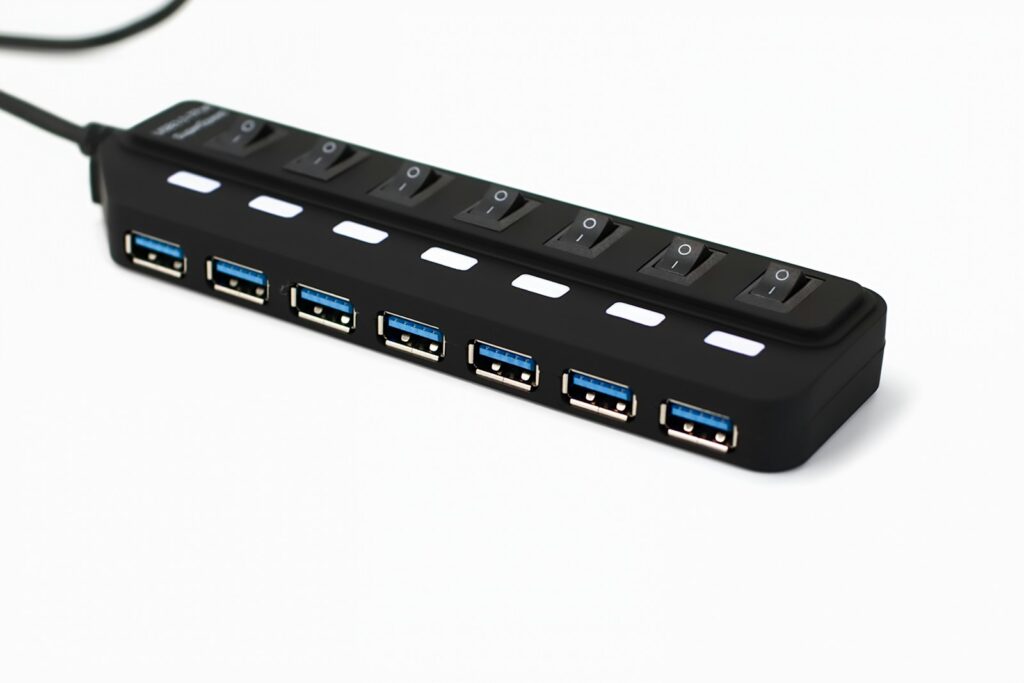
Too few ports may require USB hubs or upgrades.
Types of USB ports on a motherboard
External (rear I/O panel)
- USB 2.0, 3.0, 3.1 Gen1/Gen2, USB-C
- Usually 4 to 8 ports, depending on model
Internal headers (for front panel ports)
- USB 2.0 header: supports 2 ports
- USB 3.x header: supports 1 or 2 ports
- USB-C internal header (on newer boards)
How to check how many USB ports you have
1. Check your motherboard model
- Look on the board itself (printed model)
- Or use software like CPU-Z or Speccy
2. Visit the official specs page
Search your model online and check the manufacturer’s specs sheet. Look under “rear I/O ports” and “internal connectors.”
3. Use Device Manager (Windows)
- Open Device Manager
- Go to “Universal Serial Bus controllers”
- This shows USB controllers, but not always number of ports
Example
MSI B550 Tomahawk:
- Rear: 6 USB ports (2x 2.0, 2x 3.2 Gen1, 2x 3.2 Gen2)
- Internal headers: 2 USB 2.0 (for 4 ports), 1 USB 3.2 Gen1 (for 2 ports)
- Total possible: 12 USB ports
FAQs
Can I add more USB ports?
Yes. Use a PCIe USB expansion card or a powered USB hub.
Is USB 3.2 faster than 2.0?
Yes. USB 3.2 Gen2 can reach up to 10 Gbps vs. 480 Mbps for USB 2.0.
Are front panel USBs part of the motherboard?
They’re connected via internal headers but not pre-installed.
Conclusion
Your motherboard can support many USB ports via rear and internal headers. Checking your model’s specs is the best way to know how many are usable for your needs.
References (APA)
- ASUS. (2024). Motherboard technical specifications. https://www.asus.com
- MSI. (2024). USB headers and port layouts. https://www.msi.com
- PCWorld. (2023). Guide to motherboard USB port types. https://www.pcworld.com